A free home media server for the movies, shows and music you already own.
Install Kinode Media Server on a Windows PC and watch your personal media library on your phone, your TV or any browser, at home or away. It is self-hosted streaming with nothing to pay: remote streaming, hardware transcoding, intro skipping and sharing are included, and there is no paid tier.
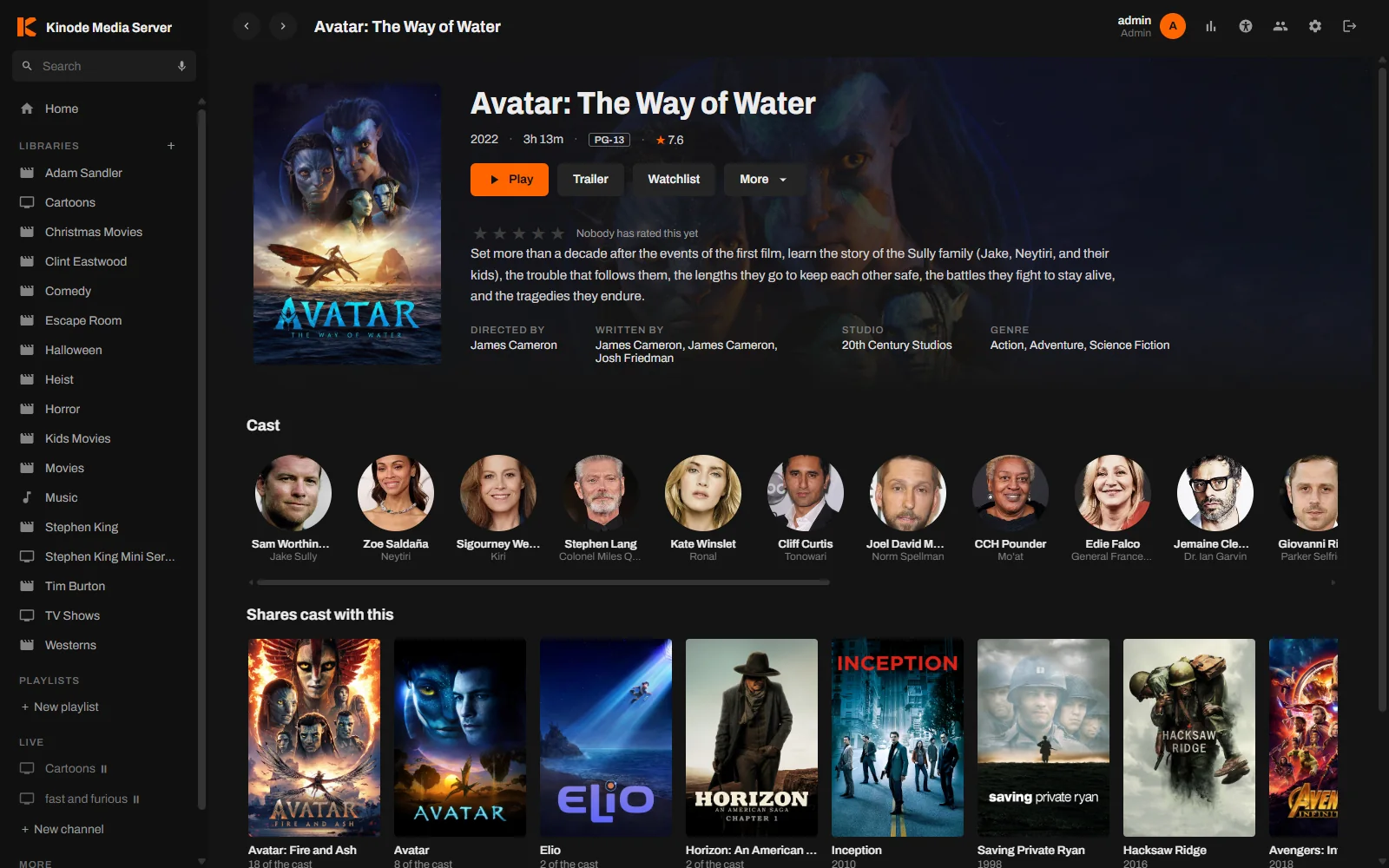
Where it plays
Android and Google TV
Phones, tablets and TVs.
Coming to Google PlayRoku
Streaming players and Roku TVs.
Coming to the Roku Channel StoreWindows and Linux
The server itself: a Windows installer with a tray app, or a Linux package.
Download the server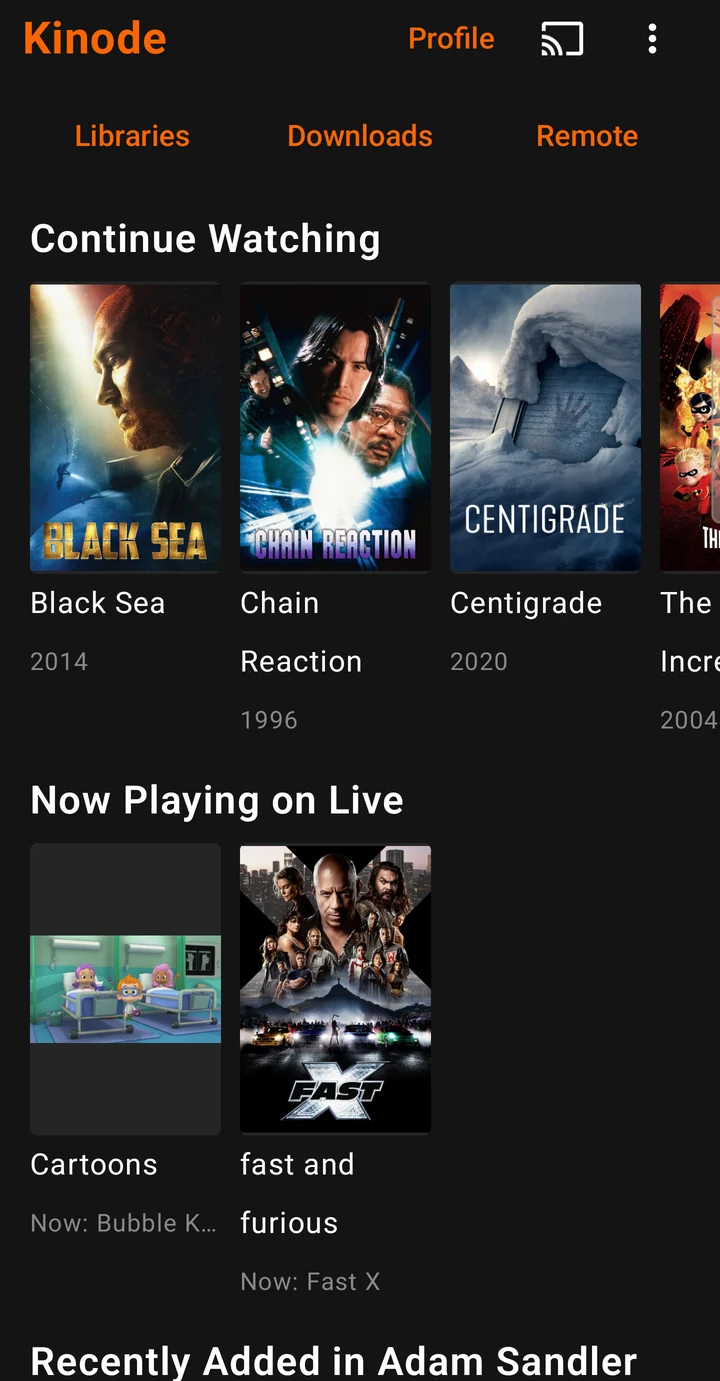
The same library on every screen
Sign in once with a Kinode account. Your own servers, and anything a friend has shared with you, appear in every app without typing an address.
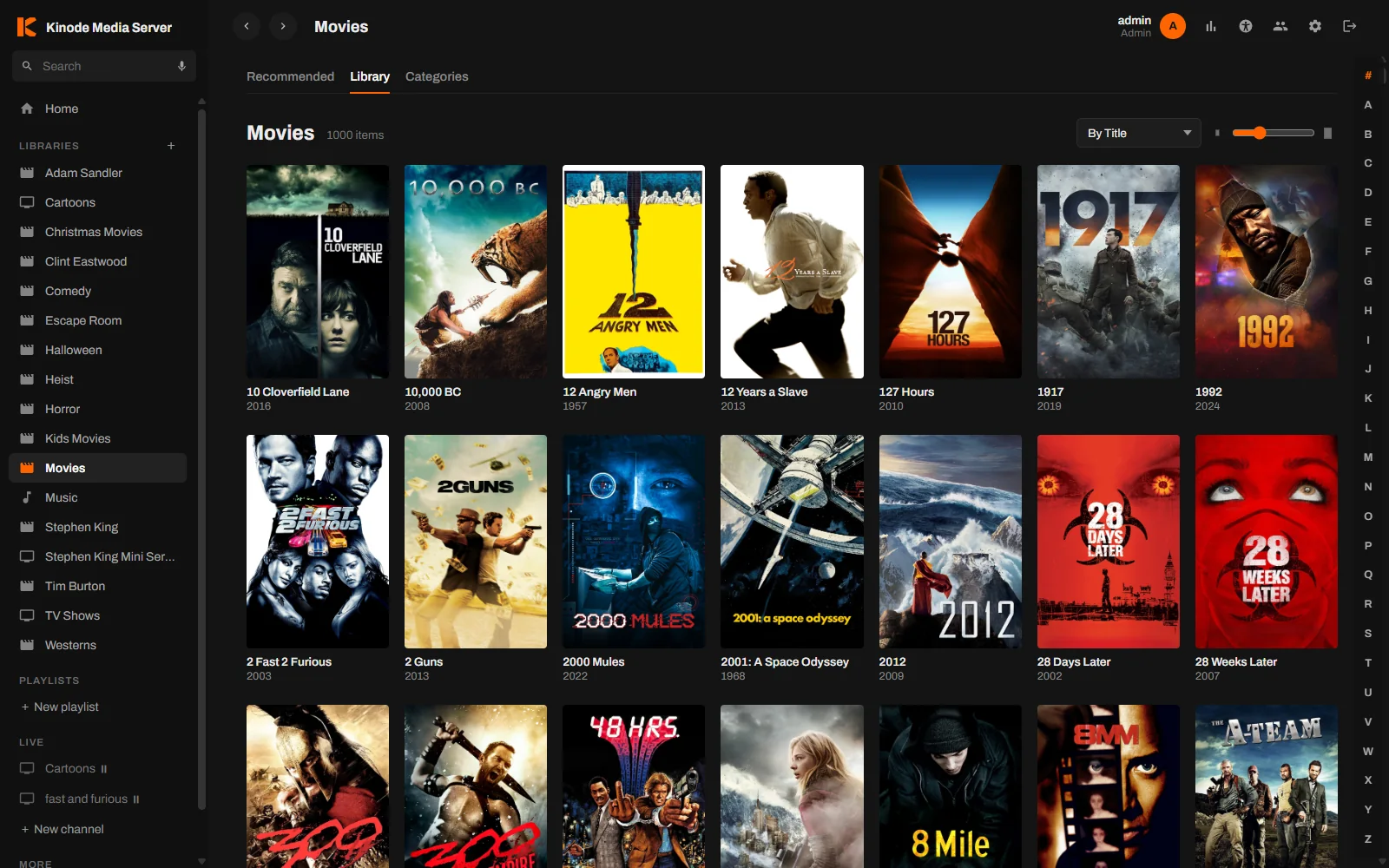
- Home screenContinue Watching, Recently Added, collections and what is airing on your live channels.
- DownloadsSave titles to the phone for offline viewing, as the original file or a smaller 1080p or 720p copy the server prepares.
- CastingChromecast from the web player or the Android app. While the TV plays, the phone works as the remote.
- ProfilesEach person in the house gets a profile with their own history. Kid profiles have a rating limit.
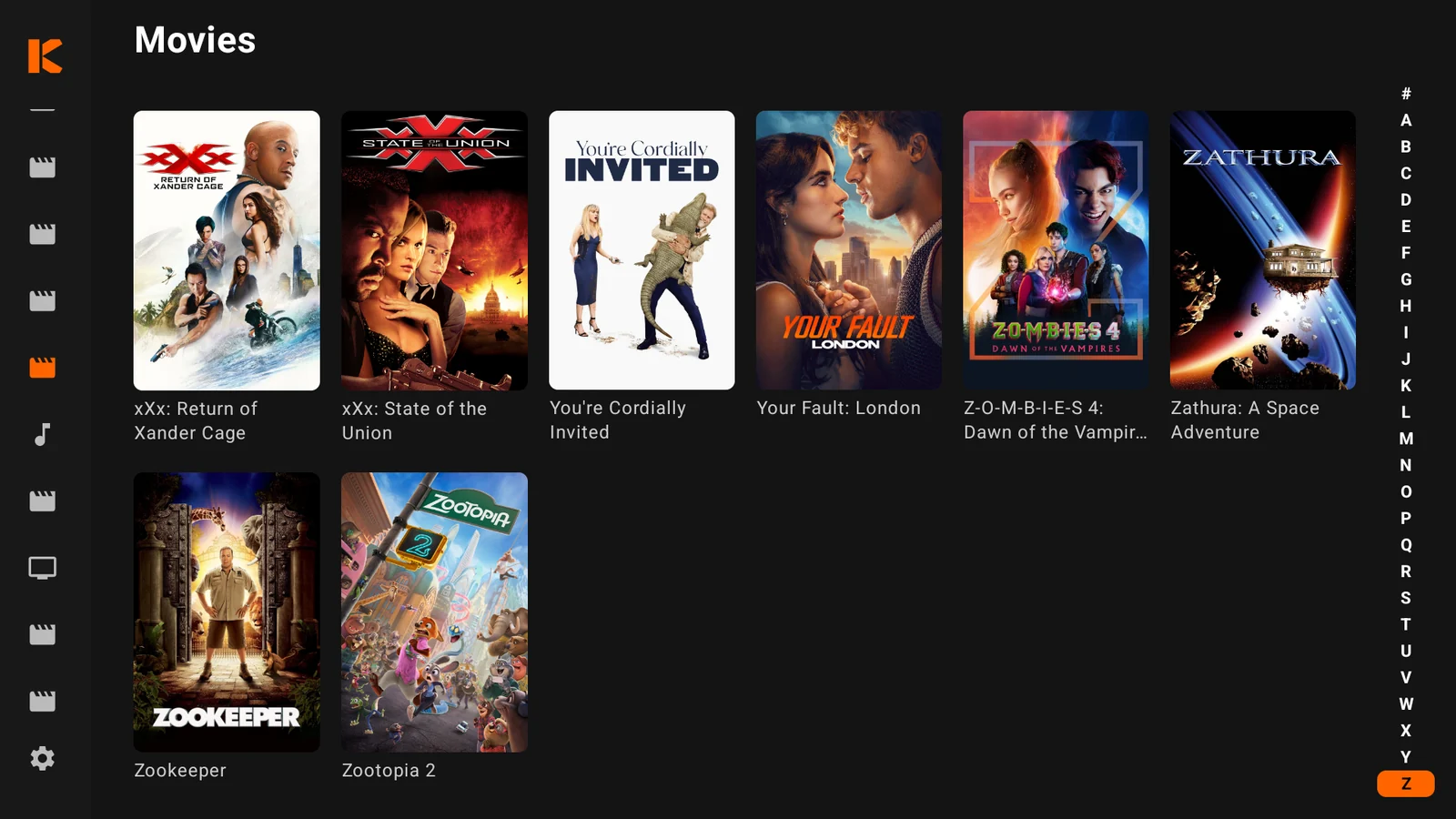
- SearchWord order and punctuation are ignored, and the TV app takes voice searches.
What comes with it
Everything on this list is in the free download. There is no paid version to upgrade to.
Local connection first
When a phone or TV is on the same network as the server, it connects directly instead of going out through the internet. Apps find the server on their own and switch to the local address as soon as it answers.
Skip intro
Intros are found by comparing the episodes in a season, so the skip button shows up without any setup. Intro and credits markers can also be imported from Plex.
Trailers, cast and people
Movies have their trailer and a cast list with photos. Each person has a page with a biography and everything else of theirs that is on your server.
Music
Artist pages have a photo, a biography and the band members, taken from MusicBrainz and Wikipedia. No API key or account is needed.
Rewind
Each profile has a year in review with hours watched, longest streak, busiest night, and top titles and genres.
Library sharing
Share specific libraries with family or friends instead of the whole server, and set a maximum content rating for each person. A kids' account cannot see or play anything above its limit.
Watch Together
Start a room and send the five-character code. Playback stays in sync for everyone in the room, with a chat panel next to the video.
Readable transcoding
The activity page lists every stream. When a file is being converted, it names the codec or setting that caused it.
HTTPS without setup
Each connected server gets its own DNS names and a trusted certificate from the hub, and the certificate renews itself. Remote streams are encrypted on the port you already forwarded, with no domain or reverse proxy to set up.
Works without this website
Sign-in tokens are checked by your own server. If kinode.tv went offline, your server and apps would keep playing.
Offline alerts
If your server stops checking in, the hub sends you one email, and another when it comes back.
Compared with a typical media server
These are features that other media servers charge for, have removed, or never offered.
| Feature | Typical media server | Kinode Media Server |
|---|---|---|
| Streaming outside your home | Paid subscription | Included |
| Encrypted (HTTPS) remote streaming | Often your own domain and certificate | Automatic |
| Hardware transcoding | Paid subscription | Included |
| Skip intro and credits | Paid subscription | Included |
| Synced group watching | Removed from Plex in 2025 | Included |
| Forced local connection | Removed | Default |
| Ads and content you did not add | On your home screen | None |
| Playback when the vendor is down | Sign-in fails | Keeps working |
Questions
Is Kinode Media Server free?
Yes. There is no subscription and no paid tier. Remote streaming, hardware transcoding, skip intro, sharing and the apps are all included.
What does it run on?
The server runs on Windows 10 and 11 and on 64-bit Linux, on Intel and AMD or ARM. You can watch in a web browser, on Android phones and tablets, on Google TV and on Roku.
Can I watch when I am away from home?
Yes, at no cost. Connect the server to a free Kinode account and the apps find it from anywhere. Remote connections use HTTPS with a certificate the Kinode hub issues for your server.
Do my files get uploaded anywhere?
No. Your media stays on your machine and streams directly to the people you share it with. What the Kinode hub receives is a check-in with your server's name and addresses and, unless you turn it off in Settings, the title lookups your server makes for posters and descriptions.
Can I use it alongside Plex?
Yes. Kinode uses port 5466 and Plex uses 32400, so both can run on the same computer. Kinode scans your folders with its own scanner and can import intro and credits markers from Plex.
How many people can watch at once?
As many as your network allows when files play directly, because the server is only reading them. Converting is what limits you, and one 4K conversion can keep a strong processor busy.
Getting started
Install the server
Run the installer on the computer that holds your media. It installs as a Windows service and starts with the machine.
Add your folders
The server opens in your browser when setup finishes. Create the first account and point it at your movie, TV and music folders.
Connect your apps
Create a free Kinode account and link the server under Settings, Playback, Hub connection. Your apps will then find it at home and away.